> ## Documentation Index
> Fetch the complete documentation index at: https://openclaw-simplex.mintlify.site/llms.txt
> Use this file to discover all available pages before exploring further.
# Screenshots
> Step-by-step screenshots showing the full SimpleX pairing flow from generating an invite link through contact approval and the first agent conversation.
This page shows the supported SimpleX pairing and approval flow.
This walkthrough assumes channels.openclaw-simplex.connection.wsUrl already points to a running SimpleX runtime. If not, start with [Getting Started](/guide/getting-started).
Generate a one-time invite link with the plugin CLI:
```bash theme={null}
openclaw simplex invite create --qr
```
You can also generate or inspect links directly in the simplex-chat console with /c, /ad, or /show\_address. For automation, OpenClaw also exposes gateway methods for invites, runtime status, runtime users, verification, contact requests, group links, moderation, file controls, and link onboarding.
Send the first message from the SimpleX app and capture the pairing request.
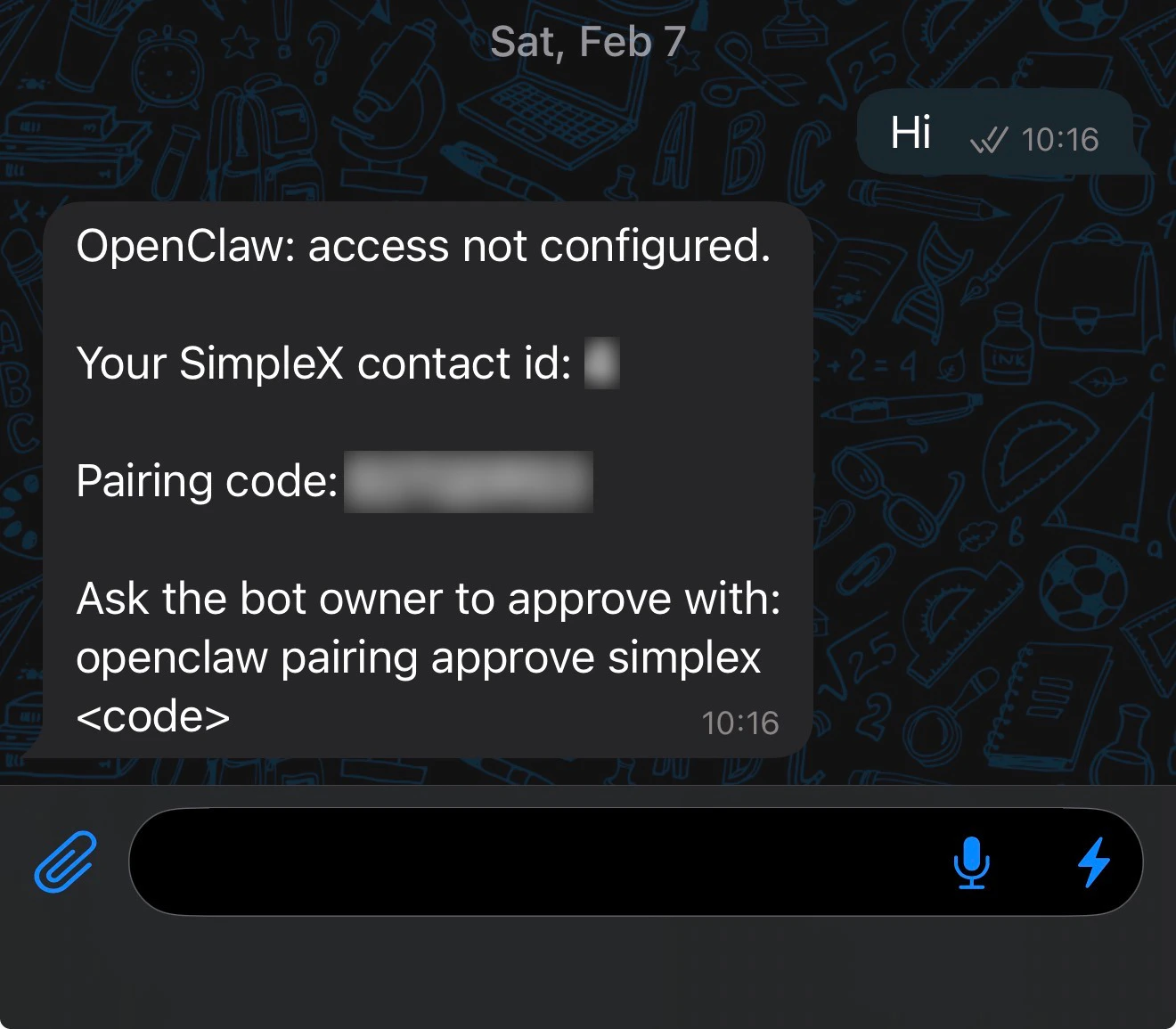
openclaw pairing list should now show a pending request for the sender that just messaged the agent.
 ```bash theme={null}
openclaw pairing list
openclaw pairing approve openclaw-simplex
```
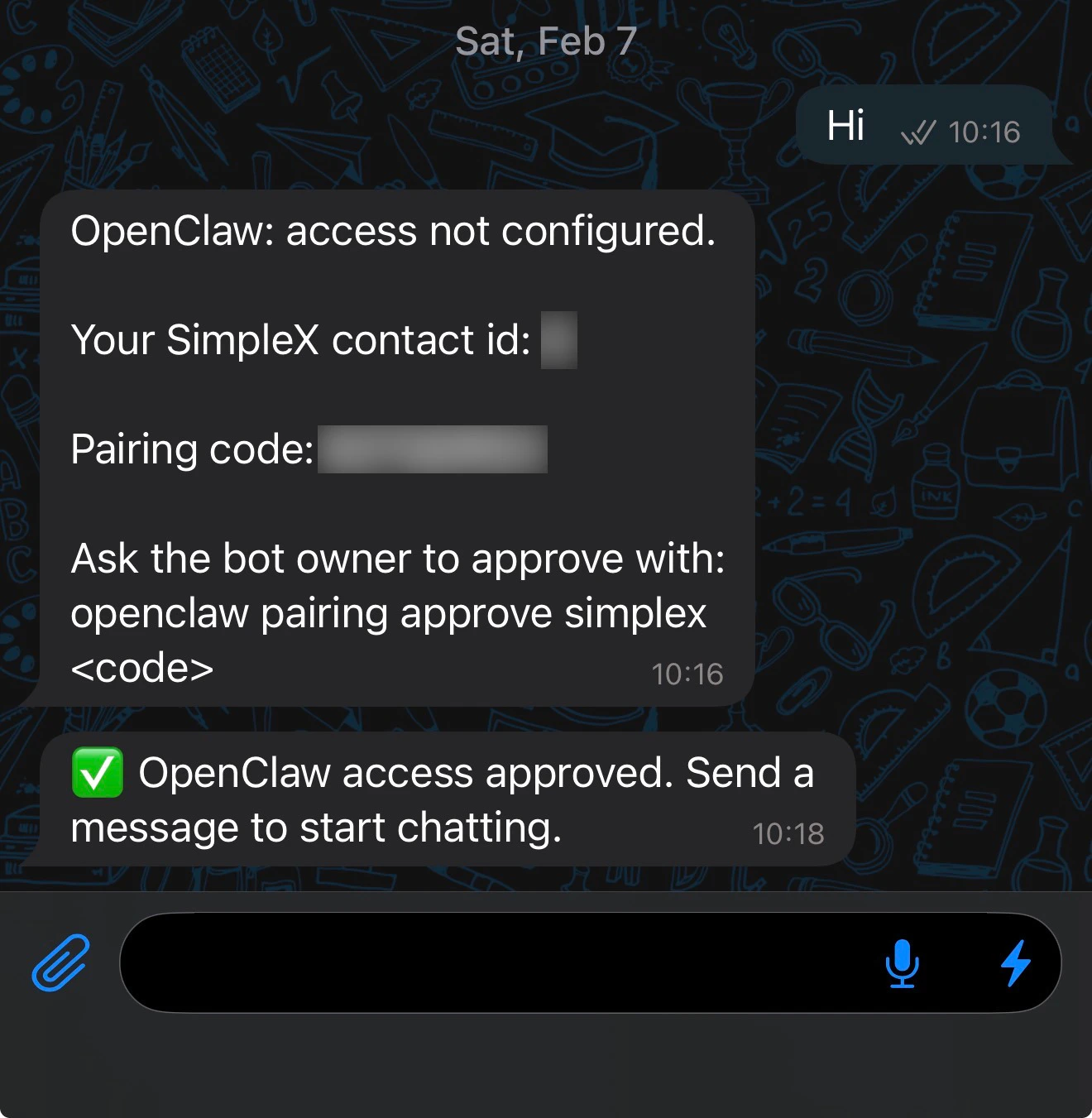
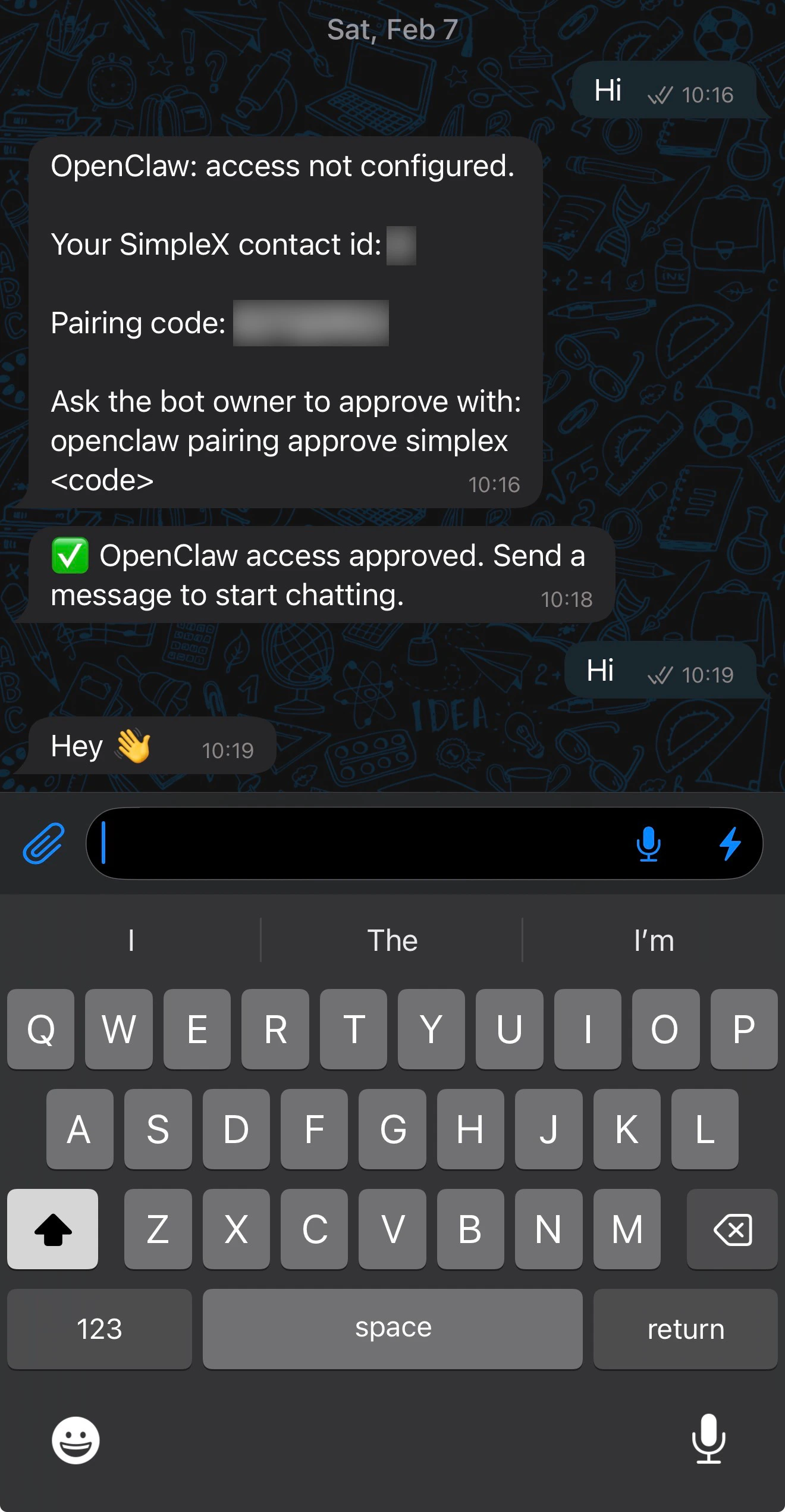
After approval, SimpleX should show the access-approved message and the next user message should receive an agent reply.
```bash theme={null}
openclaw pairing list
openclaw pairing approve openclaw-simplex
```
After approval, SimpleX should show the access-approved message and the next user message should receive an agent reply.