This walkthrough assumes
channels.openclaw-simplex.connection.wsUrl already points to a running SimpleX runtime. If not, start with Getting Started.simplex-chat console with /c, /ad, or /show_address. For automation, OpenClaw also exposes gateway methods for invites, runtime status, runtime users, verification, contact requests, group links, moderation, file controls, and link onboarding.
1
Send the first message
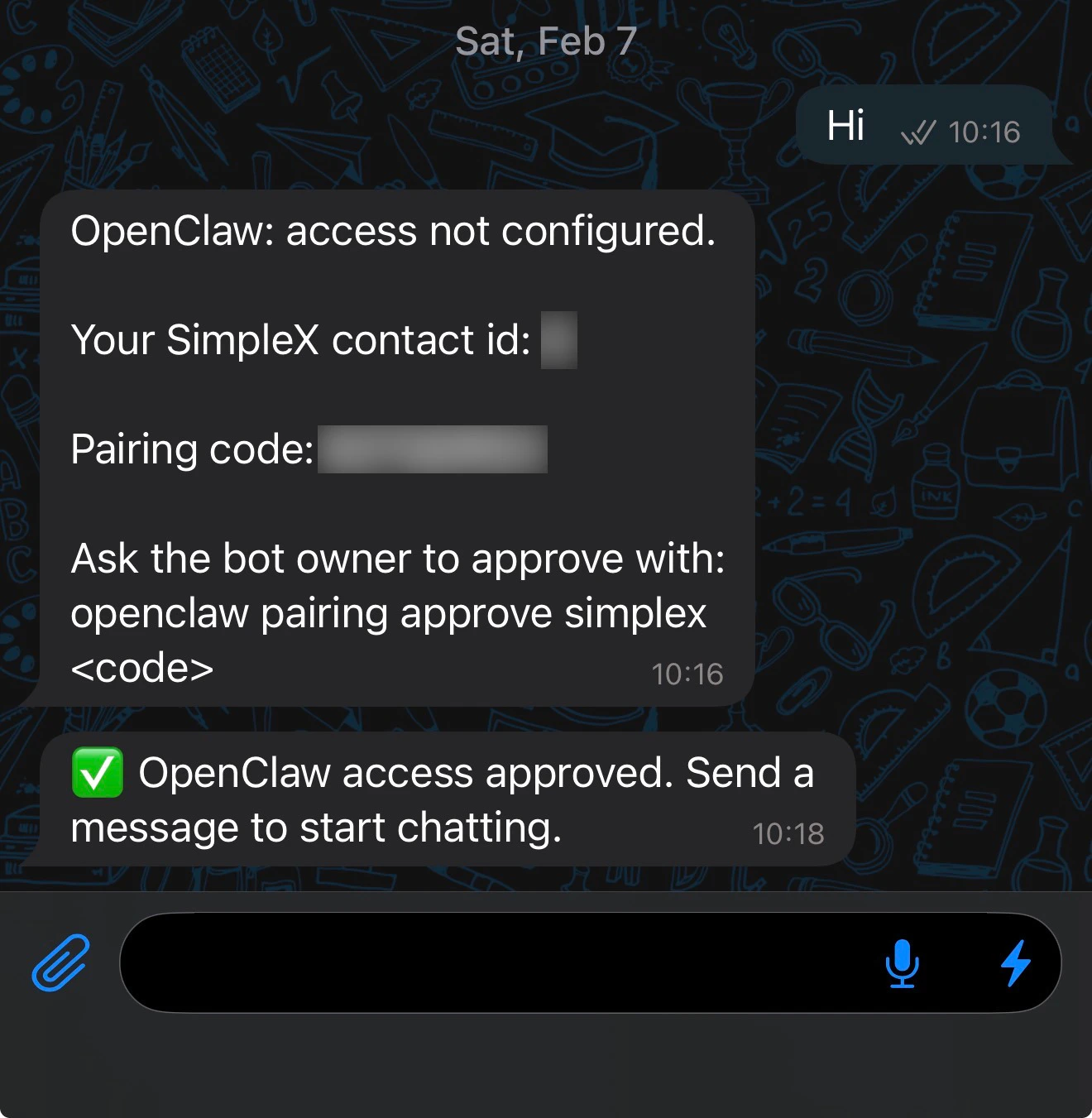
Send the first message from the SimpleX app and capture the pairing request.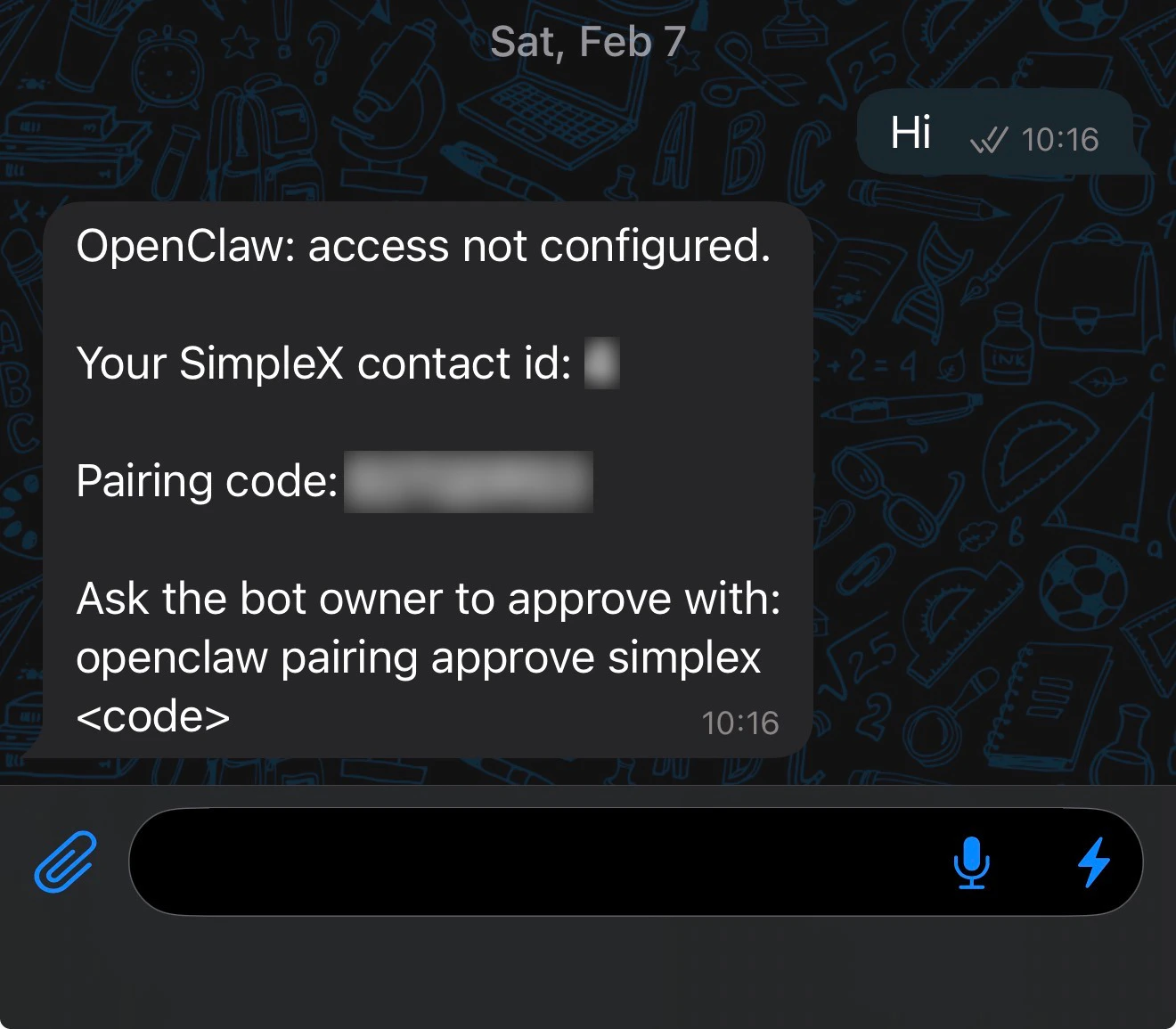
2
Review the pairing request in OpenClaw
openclaw pairing list should now show a pending request for the sender that just messaged the agent.
3
Approve the pairing request
4
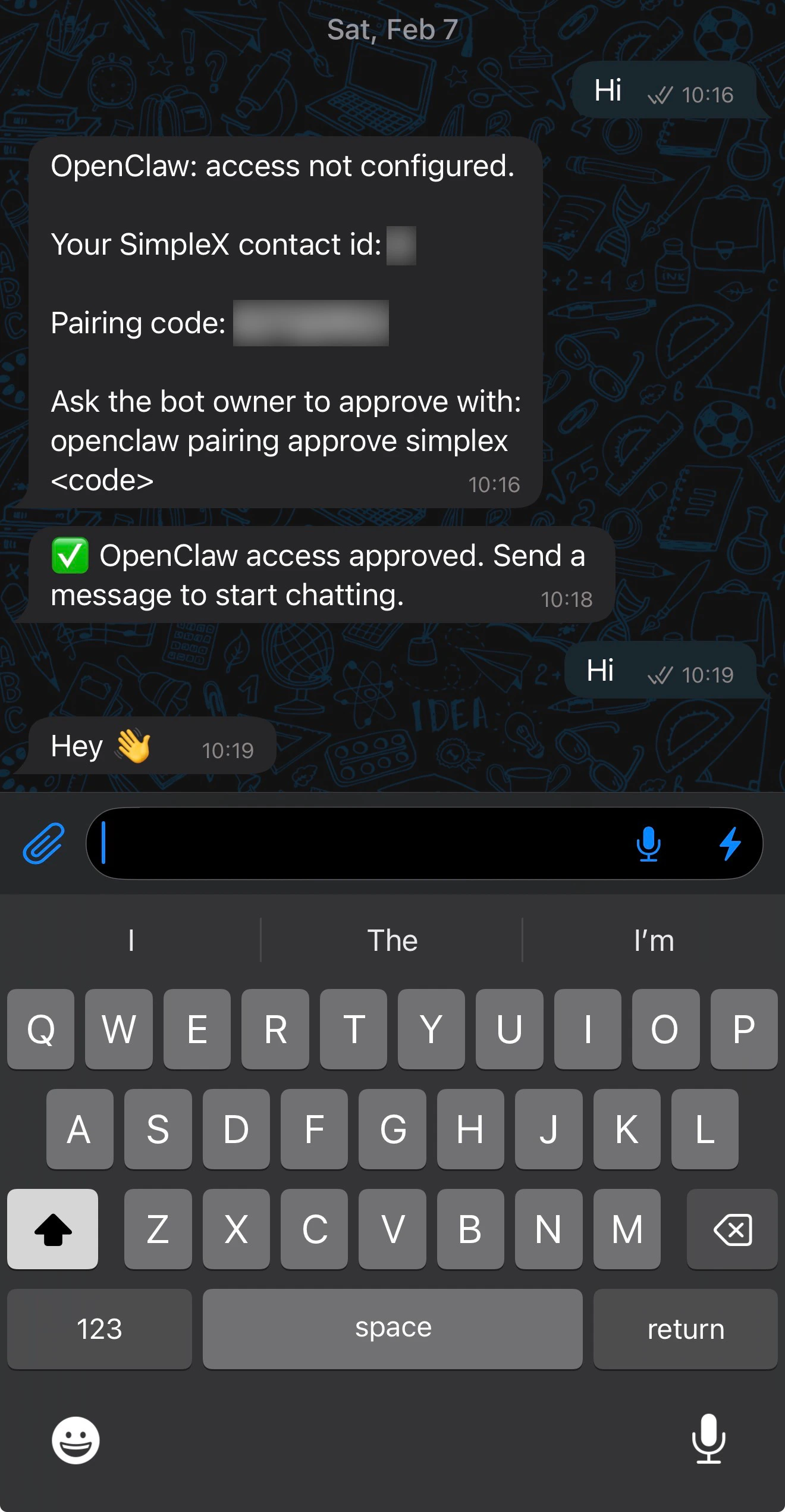
Confirm approval and successful chat
After approval, SimpleX should show the access-approved message and the next user message should receive an agent reply.